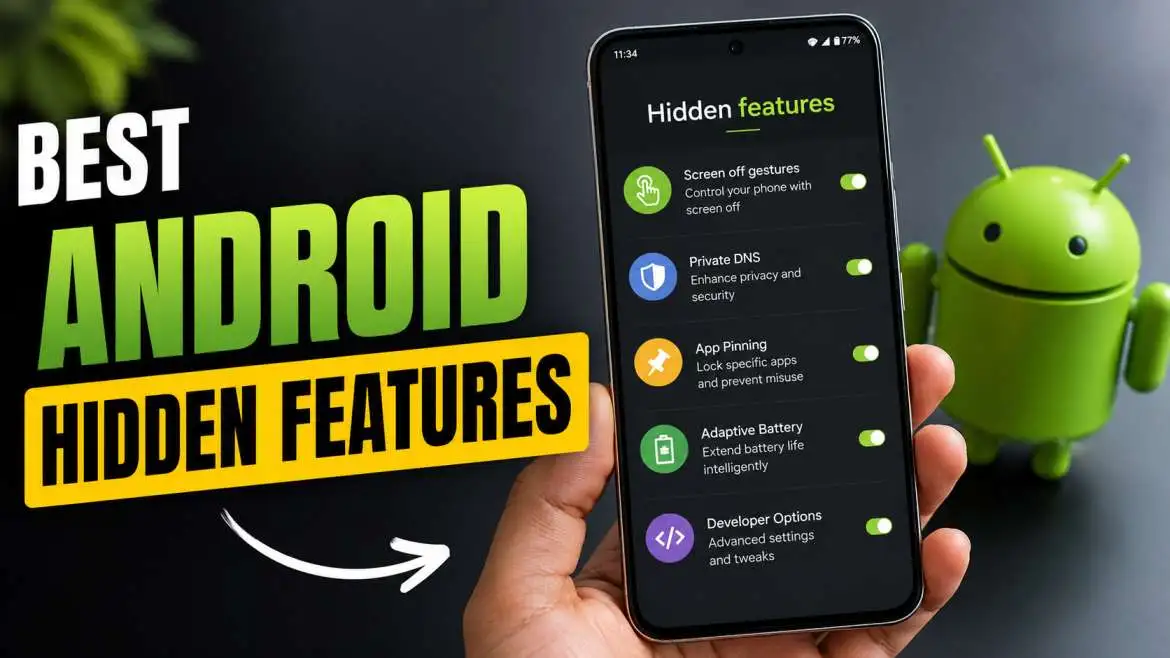
Your Android phone is a powerful device. You use it every day for calls, texts, photos, and social media. But here is a secret: your phone can do much more. There are many tools and options built into your system that most people never see.
These are not complex add-ons. They are simple features made by Google to help you work faster, keep your data safe, and fix small problems. You do not need to be a tech expert to use them. You just need to know where to look.
In this guide, we will walk through the best Android hidden features. We will look at Android hidden features and tricks that save time. We will share an Android hidden features list you can follow step-by-step. We will even explore an Android hidden settings app to unlock secret menus. From Android secrets and hacks to Android hidden apps, this article covers everything to make your phone work better for you.
The Secret Door: Turn On Developer Options
Most Android users do not know about the "Developer Options" menu. Phone makers hide this menu on purpose. They want to keep new users away from deep system settings. But inside this menu, you can make your phone faster and smoother.
How to find it:
Open your Settings. Scroll down to About Phone. Look for the build number. Tap on "Build Number" seven times fast. You will see a small message saying, "You are now a developer."
What you can do now:
Go back to the main Settings page. You will see a new menu near the bottom called Developer Options.
Inside this menu, you can change three useful things:
- Change Animation Speed: Look for "Window animation scale." Change it from 1x to 0.5x. Your phone will feel much faster.
- Limit Background Processes: This stops apps from running when you are not using them. It saves battery life.
- Force Higher Refresh Rate: If you like gaming, this keeps your screen smooth.
Be careful with this menu. Some changes can break your phone if you tap the wrong thing. Only change the settings mentioned above until you learn more.
You may also read :- Best Android Smartphone Hacks to Unlock Hidden Features
Private Space: Your Hidden Vault for Apps
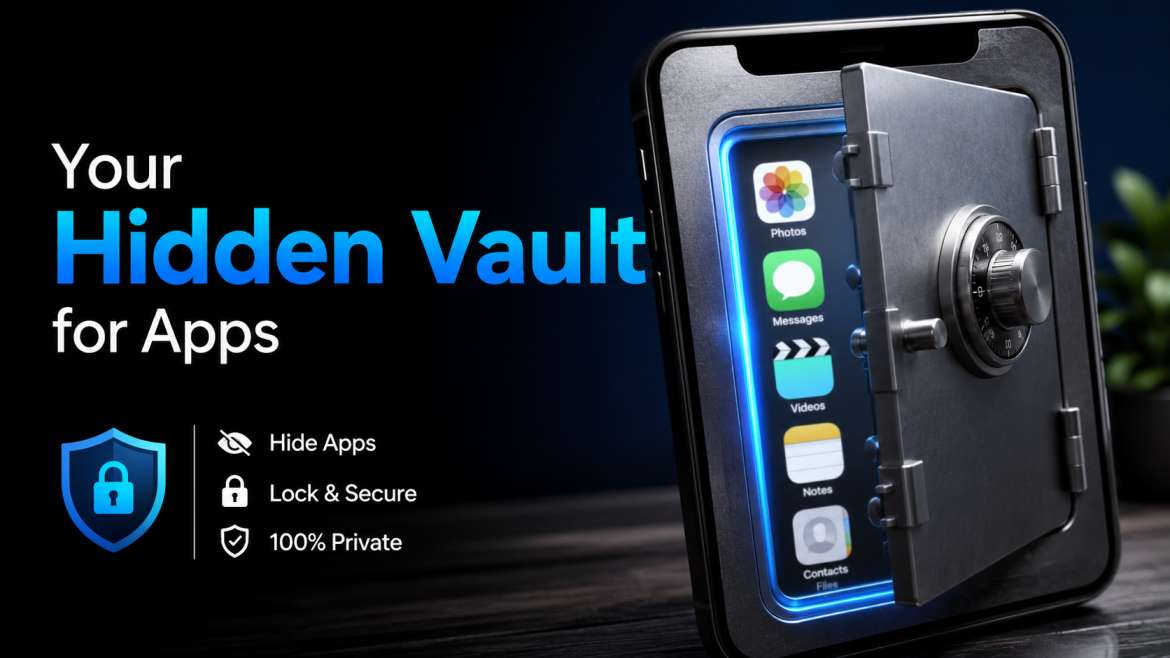
Everyone has apps they want to keep private. Maybe it is a banking app. Maybe it is a personal journal. You do not want friends or kids to see them when they borrow your phone. Android has a tool for this called Private Space.
Why this is powerful:
This is one of the best Android hidden app features because it completely hides the app. The app does not show up on your home screen. It does not send notifications when the space is locked. It is like a secret phone inside your phone.
How to set it up:
Go to Settings > Security and Privacy > Private Space. You will set a separate password or PIN. Once inside, you can add any app you want.
To open your private space later, go to your app drawer and scroll to the bottom. You will see a small folder. Tap it and enter your code. When you lock it again, the apps vanish.
Emergency SOS and Medical ID
Safety features are often hidden deep inside Android. But they can save your life. Android has two big safety tools: Emergency SOS and Medical Info.
Emergency SOS:
You can set your phone to call for help quickly. Go to Settings > Safety and Emergency > Emergency SOS. Turn on the feature. Now, if you press the power button five times fast, your phone will:
- Call emergency services.
- Send a text message to your emergency contacts.
- Share your live location.
Medical Info:
First responders can see your medical information even if your screen is locked. Go to Safety and Emergency > Medical Info. Add your blood type, allergies, medicines, and emergency contacts. Anyone can tap "Emergency" on your lock screen to see this info.
App Pinning: Lock Your Screen to One App
Have you ever handed your phone to a friend to show them one photo? Then they started swiping through your whole gallery. It feels bad. App pinning stops this forever.
How it works:
App pinning locks the screen to one single app. The person cannot leave that app without your password.
How to turn it on:
Go to Settings > Security > App Pinning (or look in Security & Privacy > More security settings). Turn it on.
How to use it:
Open the app you want to lock. Tap the Recent Apps button (the three lines or square at the bottom). Tap the app icon at the top of the preview. Choose Pin. Now, hand over your phone safely. To unlock, swipe up and hold. Enter your PIN or pattern.
Guest Mode: A Clean Phone for Borrowers
Sometimes you do not want to pin just one app. Maybe your child needs to play a game for an hour. Or a coworker needs to make a call. You want them to use the phone, but you do not want them to see your texts or emails. Use Guest Mode.
Guest Mode creates a temporary profile. It looks like a brand new phone with no apps or data. They cannot see anything personal.
How to find it:
Swipe down from the top to open Quick Settings. Tap the user icon (a little person) at the top. Tap Add guest. When they are done, go back to the user icon and tap Remove guest. The profile deletes everything instantly.
Scheduled Messages: Never Forget a Birthday
How many times have you remembered a birthday at 11 PM? You want to text "Happy Birthday," but you do not want to wake them up. Or you need to send a work message at 8 AM, but you are sleeping. Scheduled messages fix this.
How to use it in Google Messages:
Type your text like normal. Instead of tapping the send arrow, press and hold the send button. A clock menu pops up. Choose a date and time. Hit Send. Your message will go out automatically at that exact time.
QR Code Scanner Built Into Your Camera
You do not need to download a "QR scanner" app. Those apps often have ads or spyware. Your camera does this job for free.
How to use it:
Open your Camera app. Point it at any QR code. Wait one second. A pop-up link will appear on your screen. Tap the link.
If it does not work:
Go to Camera Settings (the gear icon). Look for "Scan QR codes" or "Scan via camera." Turn it on. If you have a photo of a QR code saved in your gallery, you can also scan that. Open your Quick Settings panel and tap the "Scan QR Code" tile. Choose the photo.
The Anti-Theft Lock
Phone theft is scary. A thief can grab your phone from your hand and run. They can see your notifications and open your apps. Android 2026 has a new feature to fight this. It is called Theft Detection Lock.
How it works:
Your phone uses its sensors to feel the motion of a snatch. If someone rips the phone out of your hand, the screen locks instantly. The thief cannot get in.
How to check if you have it:
Go to Settings > Security and Privacy > Anti-theft. Turn on "Theft detection lock" and "Offline device lock." This is a must-have for anyone who travels or lives in a busy city.
Use Two Apps at the Same Time (Split Screen)
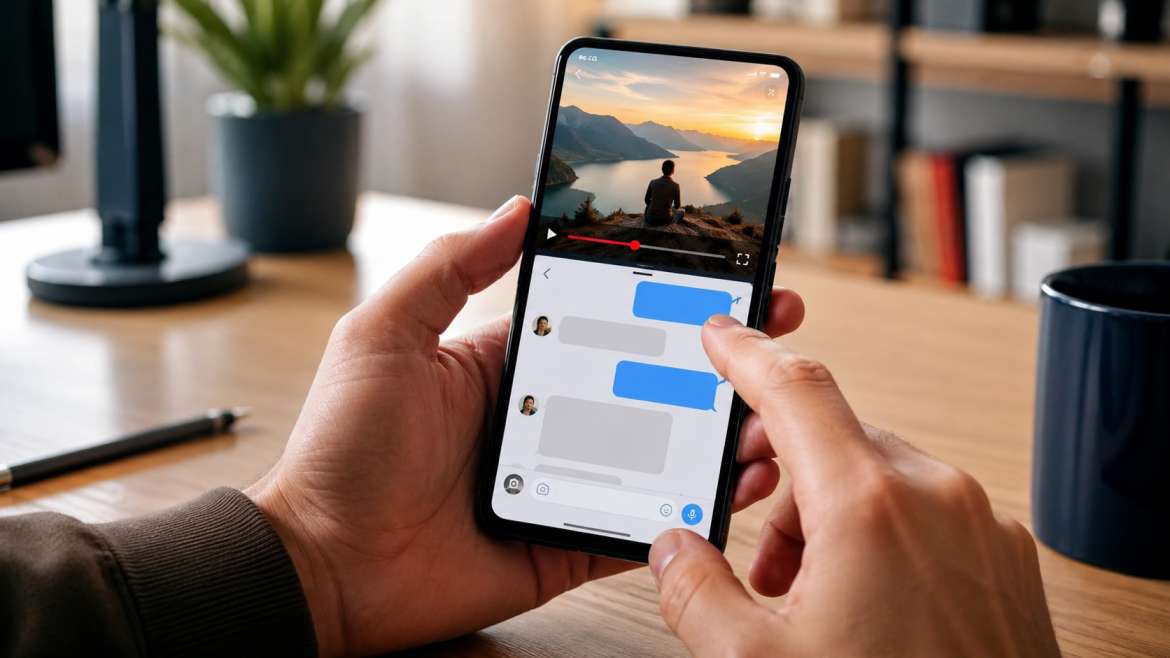
You are watching a YouTube video. But you also need to reply to a text. Do you have to close the video? No, use Split Screen mode.
How to do it:
Swipe up to open Recent Apps. Tap the icon at the top of the first app (the app you want to keep open). Choose split screen. The app moves to the top half of your screen. Then, choose the second app for the bottom half.
You can drag the middle bar to make one app bigger. To close split screen, drag the bar all the way to the top or bottom.
How to Explore More With a Hidden Settings App
Do you want to find even more controls? There are apps on the Google Play Store called Hidden Settings apps. They act like a map to all the secret menus Google hides.
What you can find with these apps:
- Notification Log: See a history of every notification you dismissed.
- System UI Tuner: This lets you remove the clock from the status bar or change battery icons.
- Battery stats: See exactly which app is killing your battery.
One popular app is just called "Hidden Settings." It has a simple interface. You tap an option, and it jumps directly to that hidden menu. Be careful when using these apps. Do not change settings if you do not know what they do.
Important Safety Warning: Keep Your Phone Secure
While exploring Android secrets and hacks, you must stay safe. Some hidden settings involve Developer Options and USB Debugging. These are powerful tools, but they have risks.
A recent security report found a flaw called CVE-2026-0073. This flaw lives inside the Android Debug Bridge (adbd). If you leave wireless debugging on, a bad person on the same Wi-Fi network could access your phone without you clicking anything.
How to stay safe:
- Turn off Developer Options when you are not using them.
- Never turn on wireless debugging at a coffee shop or airport.
- Only install apps from the Google Play Store. Bad apps can pretend to be useful.
Conclusion
Your Android phone is full of tools waiting to be unlocked. You do not need to buy a new phone to get these features. They are already in your pocket. Start with one trick today. Turn on Developer Options and speed up your animations. Or set up your medical info for safety. Once you learn these Android hidden features, you will never want to use a basic phone again. You will wonder how you ever lived without these Android secrets and hacks.
Take five minutes right now to explore your settings. Your phone will feel faster, safer, and smarter.




.webp)